

Command Line Interface (CLI) - UI Component
This tutorial covers the CLI plugin's UI component (cli.js). For programmatic/headless usage without UI, see the CLI-Programmatic tutorial.
Who Should Use the CLI UI Component?
Use the <cq-cli> UI component if you want to:
- Provide end-users with a visual command palette interface
- Enable keyboard-driven chart navigation and control
- Offer quick access to chart functions without navigating menus
- Support accessibility requirements with keyboard shortcuts
- Allow users to search and execute commands interactively
Before You Begin
Requirements
- ChartIQ library version 9.6.0 or later
- ChartIQ Core package
- CLI plugin
- The CLI plugin includes both the command execution infrastructure and the UI component.
To get a copy of the library and the CLI plugin, contact your Account Manager.
Activating the CLI UI
The CLI plugin is currently compatible only with our technical-analysis-chart.html template and is included as a commented-out plugin alongside the other included plugins.
To enable the CLI UI component, uncomment the following line:
// CORRECT: Import CLI with UI component
import "./plugins/cli/cli.js";
You cannot use
headlesscli.jsfor UI usage as it lacks the<cq-cli>web component:// WRONG: Does not include the <cq-cli> UI component import "./plugins/cli/headlesscli.js"; // Only for AI/automationThe
headlesscli.jsfile is for programmatic/headless usage without any UI. Usecli.jsto get the full command palette interface.
Locating the CLI
Once the plugin is activated, you will find it in the footer of the chart, next to the Share and Shortcuts buttons.
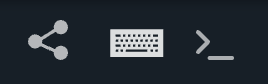
Figure. Location of the CLI toggle.
Command Palette
When you open the CLI Plugin in your chart, you'll find a list of commands that you can click or activate using your keyboard to change the Display Type, Periodicity, Range, or add a Study.
The list is generated by scraping the available commands from the ChartIQ UI, which means that custom UI commands are not included by default. Only the commands relevant to your chart preferences will be displayed in the command palette, along with any commands you have recently used.
When you start typing in the CLI input, the plugin will dynamically filter the commands in the command palette based on your input.
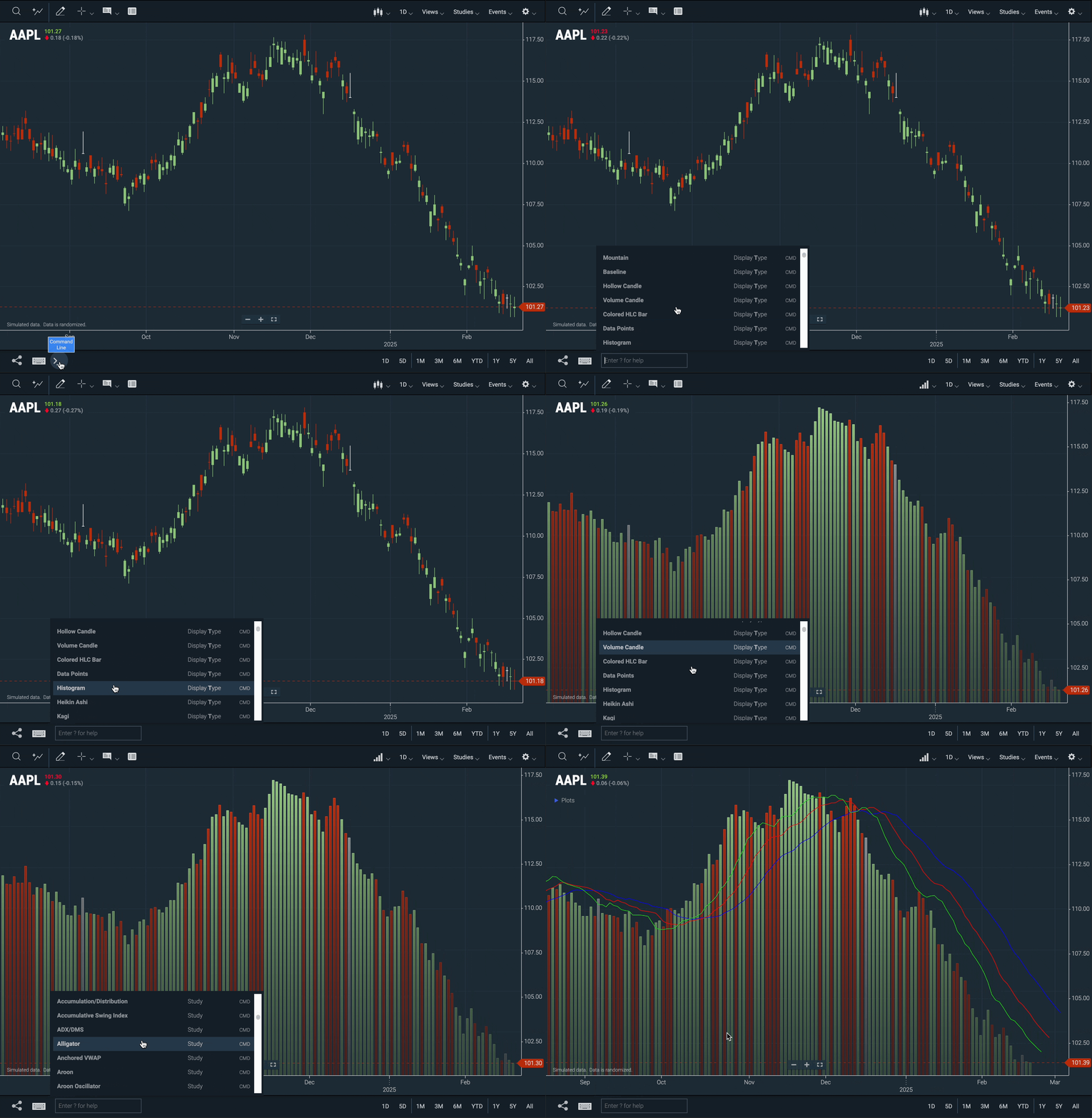
Figure. Interacting with the chart through the command palette.
Configuration
The CLI plugin is included in defaultConfiguration.js and can be customized. The CLI configuration can be found at config.plugins.cli in the configuration file.
arrow_nav: Set to "palette" to enable arrow navigation within the command palette. If set to "history", it allows cycling through recently used commands.container: Defines the location of the CLI plugin within the UI.- Note: Additional CSS styling is necessary if the CLI plugin is moved out of the footer.
customSelectors: Enables the specification of a custom selector for UI elements that you want to include in the Command Palette. (Commented out by default)customTransform: A custom function that transforms your UI elements into a format compatible with the plugin. (Commented out by default)max_history: Specifies the maximum number of commands that can be stored in the plugin's history.moduleName: The designated name of the module.- Important: This name should not be altered.
show_recent: Determines the number of recently used commands displayed in the Command Palette.synonyms: Provides alternative command options for the default command in the CLI command palette.- Simply add your alias to the corresponding property's array.
toggleMarkup: The markup for the button that identifies the CLI plugin.
User Interaction
Basic Usage
- Open the CLI: Click the CLI icon in the footer or use the keyboard shortcut
- Type a command: Start typing to filter available commands
- Navigate: Use arrow keys (if configured) or mouse to select commands
- Execute: Press Enter or click to execute the selected command
Command Types
The command palette provides access to:
- Display Types: Change chart visualization (candles, line, mountain, etc.)
- Periodicity: Change time intervals (1 Min, 5 Min, 1 Hour, 1 Day, etc.)
- Range: Change visible time range (1D, 5D, 1M, 6M, YTD, All)
- Studies: Add technical indicators (Moving Average, RSI, Bollinger Bands, etc.)
- Series: Add comparison symbols
- Custom Commands: Any commands defined in your UI configuration
Custom UI Commands
To include custom UI elements in the command palette:
- Define custom selectors in the configuration:
customSelectors: "[my-custom-command]"
- Add a transform function to map your UI elements:
customTransform: (acc, cur) => {
  const label = cur.getAttribute('data-label') || cur.innerText.trim();
  const id = `Custom ${label}`;
  acc[id] = { type: "Custom", label, cur };
  return acc;
}
Accessibility Features
The CLI component enhances accessibility by:
- Keyboard Navigation: Full keyboard control without mouse interaction
- Screen Reader Support: Proper ARIA labels and announcements
- Search/Filter: Quick command discovery through typing
- Recent Commands: Fast access to frequently-used functions
- Synonyms: Multiple ways to find the same command
See Also
- CLI-Programmatic - Using CLI programmatically for AI/LLM integration
- AI Ready - AI features that use CLI executor
- Customizing Shortcuts - Additional keyboard shortcuts